How to Design Loading, Empty, and Error States for Dashboards
Design better React dashboard states with clear loading feedback, useful empty states, recoverable errors, and stable layouts.
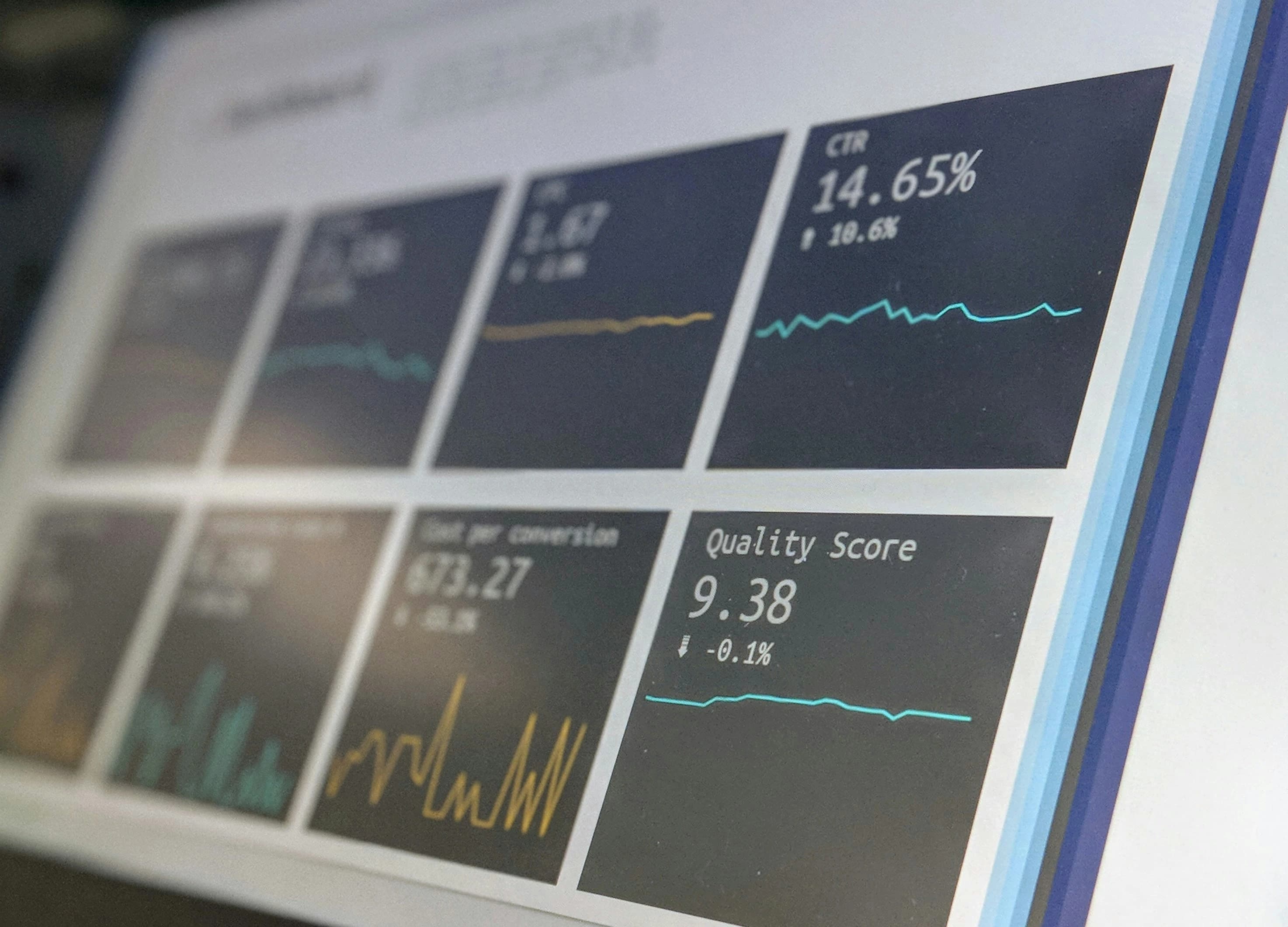
Dashboard mockups usually show the ideal state: complete data, balanced charts, and tidy tables. Real products spend a surprising amount of time elsewhere. Data is loading, a filter returns nothing, an integration is disconnected, or a request fails halfway through the page.
These states are not edge cases. They are part of the dashboard’s normal behavior, and they determine whether users feel informed or stranded.
Match the loading state to the wait
For a brief action, changing the button label and disabling repeated submission may be enough. For a larger page request, use a loading pattern that preserves the expected layout.
Skeletons work best when they resemble the content that will appear. A generic wall of gray rectangles can create false expectations and visual noise. Keep the skeleton simple, avoid elaborate animation, and reserve approximately the same space as the final content to reduce layout shifts.
When existing data is being refreshed, keep it visible if it remains useful. A subtle progress indicator and “Updating” label often provide more context than replacing the entire dashboard with a blank screen.
Distinguish different kinds of empty
An empty state can mean several things:
- A new account has not created anything yet.
- A search or filter has no matches.
- Data exists, but the user does not have access.
- An integration is not configured.
- The selected time range contains no activity.
Each cause needs a different response. A new-user state might explain the feature and offer a primary action. A filtered state should show how to clear or change the filters. A permissions state should explain the limitation without exposing information the user cannot access.
Avoid celebrating every empty state. Cheerful illustrations can work for a fresh workspace, but they are a poor fit when expected business data has disappeared.
Make errors recoverable
An error message should say what failed, what remains available, and what the user can do next.
Prefer local errors when only one panel failed. If the activity chart cannot load, the account summary and recent orders may still be useful. Turning the whole dashboard into an error page makes a partial failure feel larger than it is.
Offer a retry action when retrying is safe. Preserve filters, date ranges, and other user choices. If the problem requires a different action, such as reconnecting an account, provide that path directly.
Technical details belong in logs, not primary user-facing text. A request identifier may help support, but it should accompany a plain-language explanation.
Keep state changes accessible
Dynamic dashboard updates need sensible announcements. Not every visual change should interrupt a screen-reader user, but important results and errors should be available without requiring a search through the page.
Keep keyboard focus stable during background refreshes. Do not rebuild the entire component tree and move focus because a chart received new points. When a user-triggered action inserts meaningful content, consider whether focus should move or a status message should announce completion.
Charts and tables also need nonvisual ways to understand the data. The accessible React charts guide explains how summaries and tabular alternatives can support different users.
Build states into shared components
Dashboard components should define their state model before feature pages compose them. A data panel might accept a title, actions, content, loading state, empty state, and error state through a consistent API.
Shared patterns help answer questions such as:
- Where does the retry button appear?
- How much space does a loading panel reserve?
- What tone do empty-state messages use?
- Which errors are announced?
- Can stale data remain visible during refresh?
Consistency lowers the learning cost for users and the implementation cost for developers. It also makes testing easier because the team can verify the state pattern once, then test page-specific behavior separately.
If you are choosing the component foundation for this work, use the criteria in the React dashboard component library guide.
Test transitions between states
Do not review each state only as a static screenshot. Test the transitions:
- Initial load to populated content.
- Populated content to background refresh.
- Filtered content to no results and back.
- Partial failure to successful retry.
- Empty account to the first created item.
Those transitions reveal flicker, focus loss, duplicated announcements, and layout shifts that isolated component previews miss. A resilient dashboard is not one that never fails; it is one that stays understandable when the data is incomplete, delayed, or unavailable.
Enjoyed this article?